
No products in the cart.
Return To Shop


Adjustable OR Monitor Arms for Better Screen Positioning
In an operating room, screen position should adapt to the person using it. Adjustable monitor arms let staff reposition a display’s height, angle, and distance, supporting a more natural viewing posture while sitting or standing. The ergonomic benefits of adjustable monitor arms in an OR come from this flexibility, not simply from keeping a screen off the work surface.
Screen height and reach can affect whether users look straight ahead or repeatedly bend and turn to view clinical information. A fixed stand may not suit different users or working positions. An adjustable arm makes it easier to align the display with the task.
This article explains what an adjustable OR monitor arm does, how its movement can support ergonomic positioning, and what to consider when placing a screen for seated and standing work. It also covers how adjustability fits into operating room monitor and video integration planning.
Key Takeaways
- Adjustable arms let you change screen height, angle, and reach to suit the user and the task.
- Aligning a display with your eye level and body position can help limit repeated neck bending and turning.
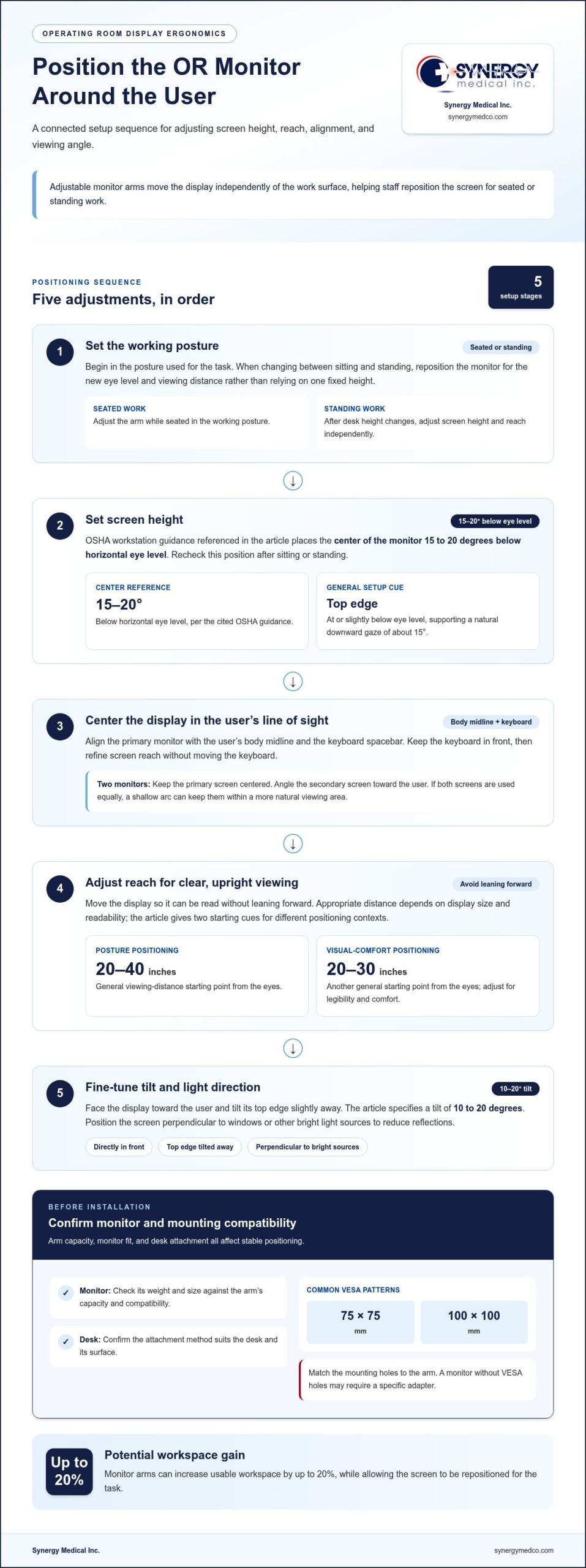
- When switching between sitting and standing, reposition the screen for the new eye level and viewing distance; OSHA recommends placing its center 15 to 20 degrees below horizontal eye level.
- Arm movement, monitor compatibility, and workstation layout all affect how effectively a display can be positioned.
What Is an Adjustable Monitor Stand?
An adjustable monitor stand uses a movable arm to change a screen’s height, angle, distance, and orientation. These adjustments help users position the display to suit their viewing needs and workstation layout.
Screen Height and Eye-Level Alignment
Screen height describes where the display sits in relation to the user’s eyes. For most monitor setups, the screen’s top edge should be at or slightly below eye level, allowing a natural downward gaze of about 15 degrees. This alignment can reduce the need to tilt the head up or down. Adjust the arm while seated in the working posture, rather than setting height while standing and assuming it will suit every position.
Positioning for Posture
Posture-focused positioning means setting screen height, angle, and distance to match the user’s working position. A general viewing-distance starting point is 20 to 40 inches from the eyes; the appropriate distance depends on display size and readability. Set the keyboard in front of the user, then position the monitor so viewing it does not require leaning forward. The arm makes it easier to refine reach without moving the keyboard.
Monitor Orientation and Viewing Angle
Monitor orientation describes the screen’s placement and tilt relative to the user. Position the display directly in front of the user and tilt its top edge slightly away for a comfortable viewing angle. A screen placed off to one side can encourage repeated neck rotation. Reposition the arm so the screen faces the user’s body midline, then adjust the tilt to limit reflections and maintain a clear view.
Key Adjustments for Ergonomic Comfort
Height, horizontal reach, tilt, and rotation are the key adjustments for ergonomic comfort because they determine how the user views the display. An arm can also free workspace: monitor arms can increase usable workspace by up to 20%. Before installation, check the monitor’s weight and size, arm capacity and compatibility, desk attachment, and VESA pattern. Common patterns include 75 x 75 mm and 100 x 100 mm. Match the mounting holes to the arm and confirm the desk supports its mounting method. A monitor without VESA holes may need a specific adapter.
Do Monitor Arms Really Improve Ergonomics?
Adjustable arms can support a more comfortable viewing position by letting users align screens with their bodies. The benefit depends on screen placement and how often users need to look away from their primary display.
Reducing Neck Bending and Rotation
Adjustability lets users move a display into their direct line of sight instead of repeatedly bending or turning. Align the primary monitor with the user’s body midline and the keyboard spacebar. In a dual-monitor setup, keep the primary screen centered and angle the secondary screen toward the user. This arrangement can reduce unnecessary neck rotation during frequent viewing.
Screen Positioning to Ease Eye Strain
Screen positioning means adjusting the display’s height, distance, tilt, and angle to support clear viewing. Place the monitor directly in front of the user and orient it perpendicular to windows or other light sources to reduce glare. A general starting distance is about 20 to 30 inches from the eyes. Adjust for legibility and visual comfort, rather than leaning forward to read.
Shoulder and back discomfort can also relate to how users sit while viewing a display. Keep the screen centered during seated work and the keyboard in front, so the user doesn’t twist their trunk to see information. When both screens are used equally, a shallow arc helps keep them within a more natural viewing area.
Monitor arms have practical limits. An arm can droop if the monitor exceeds its maximum capacity, and an incompatible desk attachment can create an unstable setup or damage the desk surface. Match the arm to the monitor’s weight and size, then confirm that its mounting method suits the desk.
For Oregon workplaces, federal OSHA workstation guidance offers a resource for monitor positioning. Apply its screen-placement recommendations alongside the user’s seated posture, viewing needs, and workstation layout.
For operating room display planning, review OR monitor options alongside positioning requirements.
Correct monitor height can reduce hunching and neck strain, lowering back and neck pain risk. Align the monitor with the user’s body midline and keyboard spacebar; for two monitors, place the primary directly in front and angle the secondary. Tilt it 10 to 20 degrees away.
Adjusting monitor position between sitting and standing
A standing desk changes the work surface height, while an adjustable arm moves the screen independently. This separate movement helps maintain a consistent viewing position across seated and standing tasks.
Screen Position Across Sitting and Standing
Adjusting the screen between sitting and standing means repositioning it for each posture. After changing desk height, move the monitor so the user can view it without leaning or lifting their chin. Standing often changes the distance between the user’s eyes and the screen, so adjust the arm’s reach as well as its height. A fixed stand moves with the desk and may not provide the same independent positioning.
Eye-Level Screen Positioning
Eye-level positioning sets the display relative to the user’s horizontal line of sight in each posture. According to the Occupational Safety and Health Administration, computer workstation guidance recommends positioning the center of a monitor 15 to 20 degrees below horizontal eye level. Apply that recommendation after sitting or standing, rather than relying on one height for both. The screen’s center, not the desk surface, is the reference point.
Reducing Eye Strain and Glare
Positioning for visual comfort includes adjusting the screen angle in relation to nearby light sources. Turn the display perpendicular to windows or other bright sources to reduce reflections. When standing, reposition the arm instead of leaning toward a screen that now sits farther away. A clear image at a comfortable viewing distance helps reduce the need to lean in during computer work.
For a single screen, place the display in front of the user’s body midline after each posture change. For two equally used screens, arrange them in a shallow arc so neither sits far to one side. Reposition the mounts when desk height changes, then check that both displays remain easy to view. This keeps the workspace organized and helps bring the secondary screen into the user’s natural viewing direction.
Monitor arm adjustability
Adjustability is the range of movement a monitor mount provides while supporting the display. In an OR workspace, useful movement depends on who needs the screen, where they work, and whether viewing positions change during a task. The ergonomic benefits of adjustable monitor arms in OR settings come from matching that movement to actual workstation needs.
Height and horizontal reach let staff move a display to eye level or bring it closer for detailed viewing. Tilt changes the screen angle, while rotation turns it toward a user approaching from another position. These adjustments can limit repeated neck rotation when staff share a display. The ergonomic benefits of adjustable monitor arms in OR workflows are clearest when repositioning supports the task rather than prompting constant screen movement.
For a stable setup, consider the monitor’s weight and dimensions alongside the arm’s capacity and range. An arm supporting a monitor beyond its maximum capacity may droop, making the viewing position harder to maintain. Desk space and attachment style also matter: a clamp, grommet, or freestanding base uses the work surface differently. Choose a mount that suits both the monitor and the desk.
Adjustability can also accommodate changes in display orientation. Some dual-monitor arms allow one or both screens to switch to vertical mode, which can suit information viewed in portrait format. Lifting or rotating a screen may improve access to rear ports when connections need to change. These functions can add practical value, but the ergonomic benefits of adjustable monitor arms in an OR still depend on positioning each screen for its user.
Reassess the setup after use. Check posture again after 30 minutes, and adjust if the user is leaning, turning, or holding the neck awkwardly. If staff share a display, reset its height, reach, and tilt for the next user. Prioritize controlled lift, reach, tilt, and rotation, then match the arm’s capacity and desk attachment to the installation.
Synergy Medical Inc.: Surgical Monitors
Synergy Medical Inc. offers Surgical Monitors for operating room teams selecting displays to use with adjustable monitor arms. The arm determines how a screen can be positioned; the monitor must also suit the intended viewing task and workspace. Consider display weight and dimensions when matching a screen to a mount, and account for how images will be used when choosing a monitor for clinical viewing.
For other imaging environments, Synergy Medical Inc. also offers Radiology Monitors and Mammography monitors. These categories support different clinical viewing needs, so selection should be guided by the intended application. Pairing suitable display equipment with a well-planned screen position helps teams consider both visibility and workstation layout.
Contact Synergy Medical Inc. to discuss Surgical Monitors for the operating room.
Plan Your Next OR Display Setup
Start by defining who views each display, which clinical tasks it supports, and how the workstation changes during use. Recording these requirements gives the team a practical basis for coordinating the monitor, mount, and room layout.
With those needs documented, you can move from general ergonomic principles to an OR display plan shaped around your workflow.
A clear plan is a useful starting point for a well-organized viewing station.
Frequently Asked Questions
What ergonomic benefits do adjustable monitor arms provide?
Adjustable arms let a shared workstation adapt to different users and viewing tasks without rebuilding the station. For example, staff can reposition a screen when the work area or equipment arrangement changes—a flexibility that is just as vital in veterinary surgical settings like Animal Hospital of Sullivan County as in human hospitals. An arm doesn’t resolve every source of discomfort, so evaluate the complete task setup, including how information is displayed and how staff interact with nearby equipment.
Do monitor arms reduce musculoskeletal discomfort or improve posture?
Adjustable arms can support a more suitable screen position, but they don’t treat or prevent a medical condition. Discomfort may relate to several workstation factors, including task duration, chair support, keyboard placement, and visual demands. If discomfort persists, identify which activity or position brings it on and assess the workstation as a whole instead of assuming the monitor mount is the only cause.
How do single-monitor and dual-monitor arms compare ergonomically?
Choose based on the information workflow: one display may suit tasks centered on a single image, while two can keep separate sources visible for comparison. Before selecting a dual arm, consider the combined screen footprint and whether the workstation can accommodate both displays without obstructing other equipment. The better arrangement supports the actual task without adding an unused screen.
About author
